Latest Updates:
Welcome To E-MAX COMPUTER EDUCATION PURNEA BRANCH (EMAX/EK13409) (India's Number 1 Computer Education)


Thursday, July 21, 2022

Excel 2010 - Creating PivotTables

PivotTables Intro

Introduction

PivotTable reports—or PivotTables—make the data in your worksheets much more manageable by summarizing the data and allowing you to manipulate it in different ways. PivotTables can be an indispensable tool when used with large and complex spreadsheets, but they can be used with smaller spreadsheets as well.

In this lesson, you will learn the basics of creating and manipulating PivotTables.


Using a PivotTable to answer questions

The example below contains sales statistics for a fictional company. There is a row for each order, and it includes the order amount, name of the salesperson who made the sale, month, sales region, and customer account number.
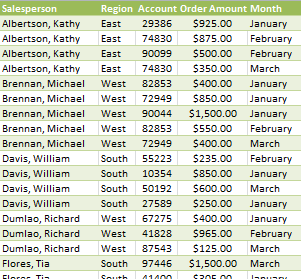
Company Sales Statistics

Let's say we wanted to answer the question What is the amount sold by each salesperson? This could be time consuming because each salesperson appears on multiple rows, and we would need to add all of the order amounts for each salesperson. Of course, we could use the Subtotal feature to add them, but we would still have a lot of data to sift through.

Luckily, a PivotTable can instantly do all of the math for us and summarize the data in a way that's not only easy to read but also easy to manipulate. When we're done, the PivotTable will look something like this:
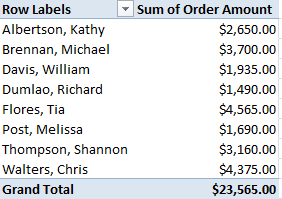
A finished PivotTable

As you can see, the PivotTable is much easier to read. It only takes a few steps to create one, and once you create it you'll be able to take advantage of its powerful features.

To create a PivotTable:

  1. Select the table or cells—including column headers—containing the data you want to use.
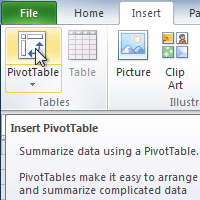
  2. From the Insert tab, click the PivotTable command.
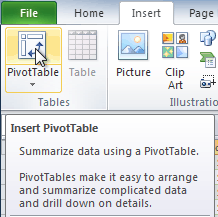
    The PivotTable command
  3. The Create PivotTable dialog box will appear. Make sure the settings are correct, then click OK.
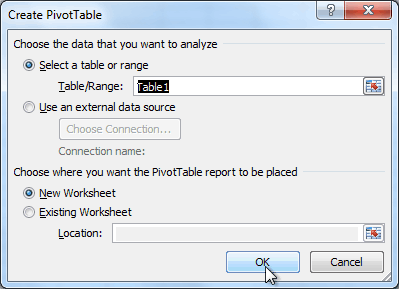
    The Create PivotTable dialog box
  4. A blank PivotTable will appear on the left, and the Field List will appear on the right.
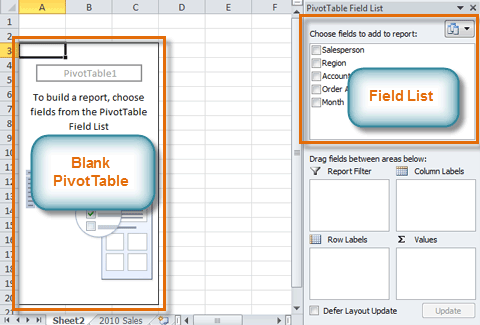
    The Blank PivotTable and Field List

To add fields to the PivotTable:


  1. In the Field List, place a check mark next to each field you want to add.
  2. The selected fields will be added to one of the four areas below the Field List. In this example, the Salesperson field is added to the Row Labels area, and the Order Amount is added to the Values area. If a field is not in the desired area, you can drag it to a different one.
  3. The PivotTable now shows the amount sold by each salesperson.
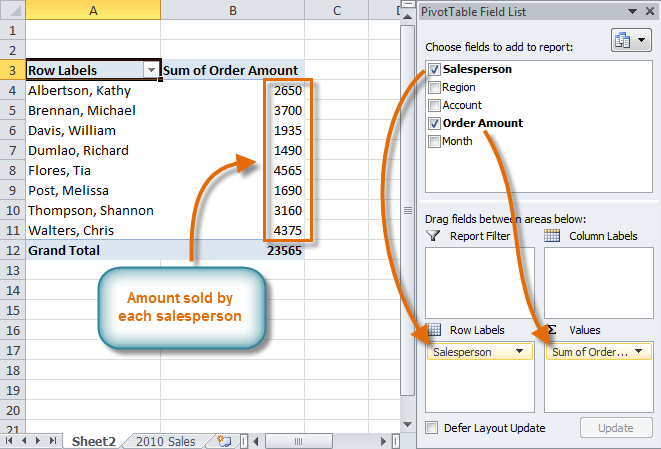
    Adding fields to the PivotTable

Note:- Just like with normal spreadsheet data, you can sort the data in a PivotTable using the Sort & Filter command on the Home tab. You can also apply any type of formatting you want. For example, you may want to change the number format to Currency. However, be aware that some types of formatting may disappear when you modify the PivotTable.

If you change any of the data in your source worksheet, the PivotTable will not update automatically. To manually update it, select the PivotTable and then go to OptionsRefresh.

Pivoting data

One of the best things about a PivotTable is that it lets you pivot the data in order to look at it in a different way. This allows you to answer multiple questions and even experiment with the data to learn new things about it.

In our example, we used the PivotTable to answer the question What is the total amount sold by each salesperson? Now we'd like to answer a new question, What is the total amount sold in each month? We can do this by changing the row labels.

To change row labels:

  1. Drag any existing fields out of the Row Labels area, and they will disappear.
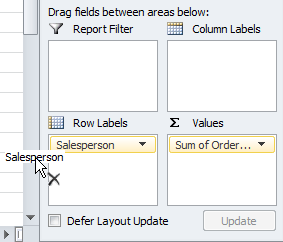
    Dragging a field out of Row Labels
  2. Drag a new field from the PivotTable Field List into the Row Labels area. In this example, we'll use the Month field.
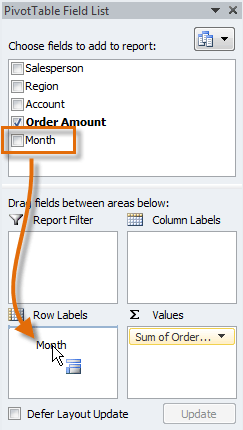
    Dragging a new field into Row Labels
  3. The PivotTable will adjust to show the new data. In this example, it now shows us the total Order Amount for each month.
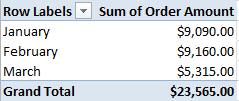
    The updated PivotTable

To add column labels:

So far, our PivotTable has only shown one column of data at a time. To show multiple columns, we'll need to add column labels.

  1. Drag a field from the PivotTable Field List into the Column Labels area. In this example, we'll use the Region field.
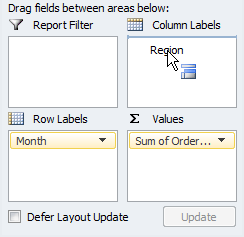
    Adding a field to Column Labels
  2. The PivotTable will now have multiple columns. In this example, there is a column for each region.
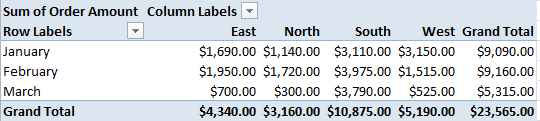
    The updated PivotTable

Using report filters

Sometimes you may want focus on a portion of the data and filter out everything else. In our example, we'll focus on certain salespeople to see how they affect the total sales.

To add a report filter:

  1. Drag a field from the Field List into the Report Filter area. In this example, we'll use the Salesperson field.
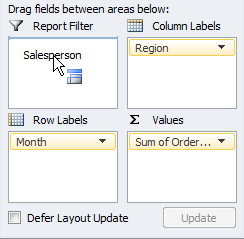
    Adding a Report Filter
  2. The report filter appears above the PivotTable. Click the drop-down arrow on the right side of the filter to view the list of items.
  3. Select the item you want to view. If you want to select more than one item, place a check mark next to Select Multiple Items, then click OK. In the example below, we are selecting four salespeople.
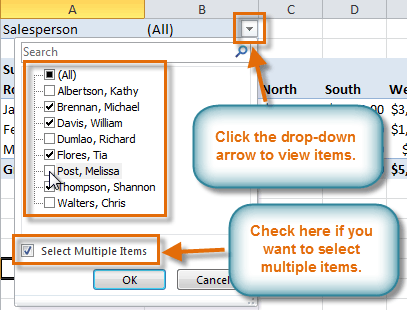
    Using a Report Filter
  4. Click OK. The PivotTable will adjust to reflect the changes.
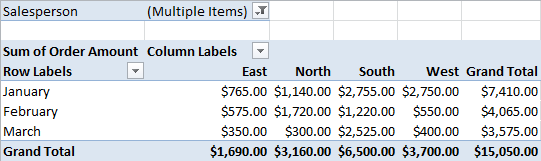
    The updated PivotTable

Slicers

Slicers were introduced in Excel 2010 to make filtering data easier and more interactive. They're basically just report filters, but they're more interactive and faster to use because they let you quickly select items and instantly see the result. If you filter your PivotTables a lot, you might want to use slicers instead of report filters.

To add a slicer:

  1. Select any cell in your PivotTable. The Options tab will appear on the Ribbon.
  2. From the Options tab, click the Insert Slicer command. A dialog box will appear.
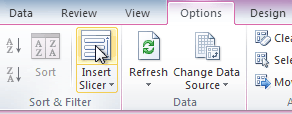
    The Insert Slicer command
  3. Select the desired field. In this example, we'll select Salesperson. Then click OK.
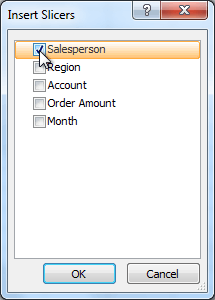
    Selecting a field
  4. The slicer will appear next to the PivotTable. Each item selected will be highlighted in blue. In the example below, the slicer contains a list of the different salespeople, and four of them are currently selected.
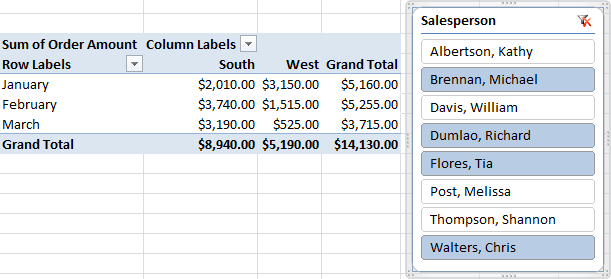
    A slicer with four selected items

Using the slicer:

Just like with report filters, only the selected items are used in the PivotTable. When you select or deselect items, the PivotTable will instantly reflect the changes. Try selecting different items to see how they affect the PivotTable.

  • To select a single item, click it.
  • To select multiple items, hold down the Control (Ctrl) key on your keyboard, then click each item you want.
  • You can also select multiple items by clicking and dragging the mouse. This is useful if the desired items are adjacent to one another, or if you want to select all of the items.
  • To deselect an item, hold down the Control (Ctrl) key on your keyboard, then click the item.
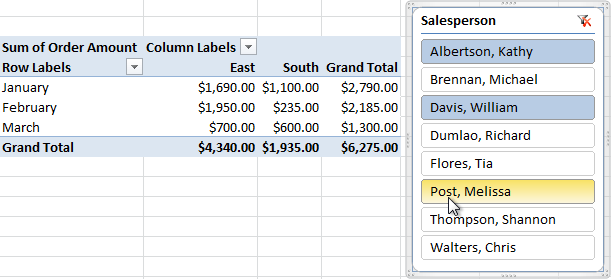
Ctrl-clicking to select multiple items

Using a PivotChart

A PivotChart is like a regular chart, except it displays data from a PivotTable. As with a regular chart, you'll be able to select a chart type, layout, and style to best represent the data. In this example, we'll use a PivotChart so we can visualize the trends in each sales region.

To create a PivotChart:

  1. Select any cell in your PivotTable. The Options tab will appear on the Ribbon.
  2. From the Options tab, click the PivotChart command.
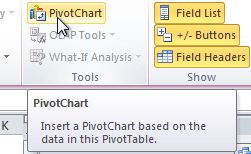
    The PivotChart command
  3. From the dialog box, select the desired chart type (3-D Clustered Column, for example), then click OK.
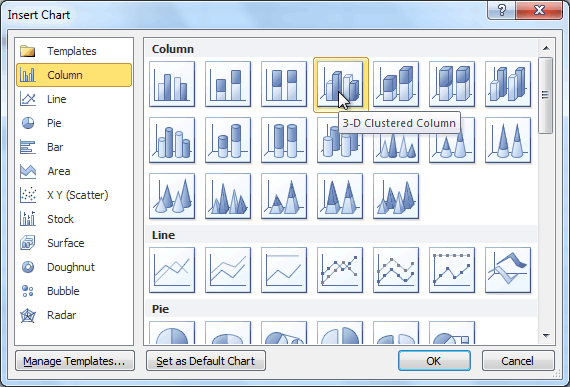
    Selecting a chart type
  4. The PivotChart will appear in the worksheet. If you want, you can move it by clicking and dragging.
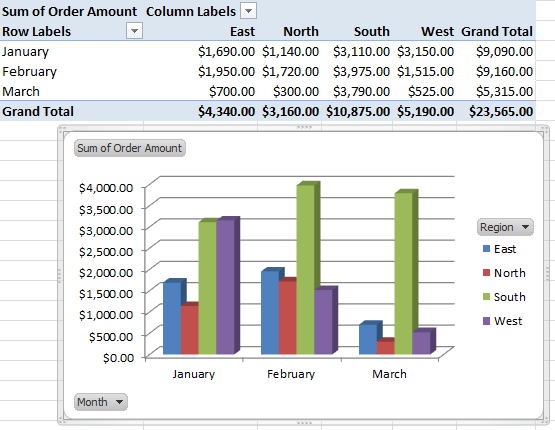
    A PivotChart

If you make any changes to the PivotTable, the PivotChart will adjust automatically.

Challenge!

  1. Open an existing Excel 2010 workbook. If you want, you can use this example.
  2. Create a PivotTable using the data in the workbook.
  3. Experiment with different row labels and column labels.
  4. Filter the report with a slicer.
  5. Create a PivotChart.
  6. If you are using the example, use the PivotTable to answer the question, Which salesperson sold the lowest amount in January? Hint: First decide which fields you need in order to answer the question.

Wednesday, July 20, 2022

Excel 2010 - Using Conditional Formatting

Lesson 19

Introduction

 Excel gives us several tools that will make this task easier. One of these tools is called conditional formatting. With conditional formatting, you can apply formatting to one or more cells based on the value of the cell. You can highlight interesting or unusual cell values, and visualize the data using formatting such as colors, icons, and data bars.

In this lesson, you'll learn how to apply, modify, and remove conditional formatting rules.


To create a conditional formatting rule:

  1. Select the cells you want to add formatting to.
  2. In the Home tab, click the Conditional Formatting command. A drop-down menu will appear.
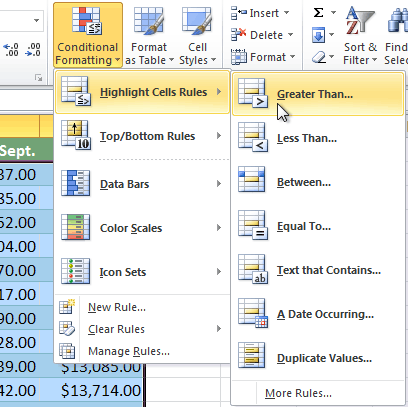
  3. Select Highlight Cells Rules or Top/Bottom Rules. We'll choose Highlight Cells Rules for this example. A menu will appear with several rules.
  4. Select the desired rule (Greater Than, for example).
    Selecting the Greater Than rule
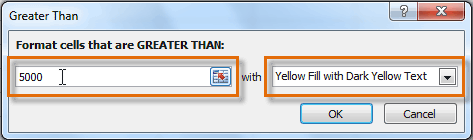
  5. From the dialog box, enter a value in the space provided, if applicable. In this example, we want to format cells that are greater than $5000, so we'll enter 5000 as our value. If you want, you can enter a cell reference instead of a number.
  6. Select a formatting style from the drop-down menu.
    Entering a value and formatting style
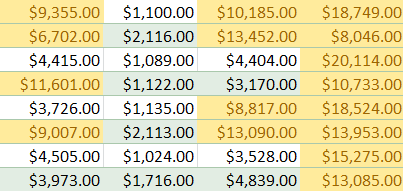
  7. The formatting will be applied to the selected cells.
    The formatted cells

If you want, you can apply more than one rule to your cells.

Conditional formatting presets

Excel has several presets you can use to quickly apply conditional formatting to your cells. They are grouped into three categories:

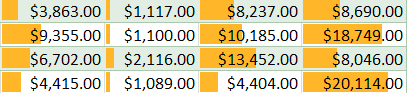
  • Data bars are horizontal bars added to each cell, much like a bar graph.
    Data Bars
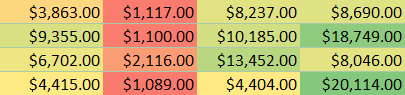
  • Color scales change the color of each cell based on its value. Each color scale uses a two- or three-color gradient. For example, in the Green-Yellow-Red color scale, the highest values are green, the average values are yellow, and the lowest values are red.
    Color Scales
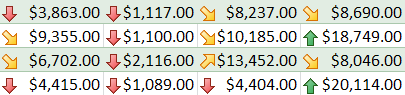
  • Icon sets add a specific icon to each cell based on its value.
    Icon Sets

To use preset conditional formatting:

  1. Select the cells you want to add formatting to.
  2. In the Home tab, click the Conditional Formatting command. A drop-down menu will appear.
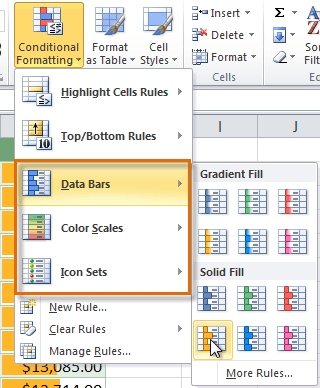
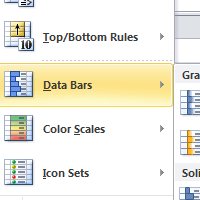
  3. Select Data Bars, Color Scales, or Icon Sets. Then select the desired preset.
    Selecting a formatting preset
  4. The conditional formatting will be applied to the selected cells.
    The finished Data Bars

To remove conditional formatting rules:

  1. Select the cells that have conditional formatting.
  2. In the Home tab, click the Conditional Formatting command. A drop-down menu will appear.
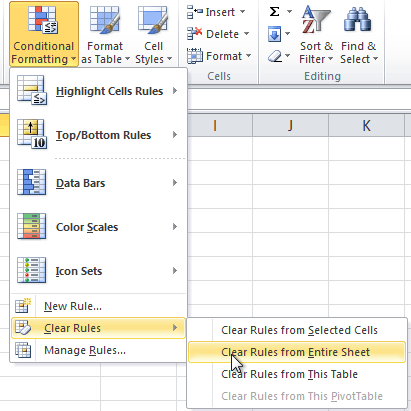
  3. Select Clear Rules.
  4. A menu will appear. You can choose to clear rules from the Selected Cells, Entire Sheet, This Table, or This PivotTable. In this example, we'll clear rules from the entire sheet.
    Clearing Rules

You can edit or delete individual rules by clicking the Conditional Formatting command and selecting Manage Rules. This is especially useful if you have applied multiple rules to the cells.

Challenge!

  1. Open an existing Excel 2010 workbook. If you want, you can use this example.
  2. Apply conditional formatting to a range of cells with numerical values. If you are using the example, apply formatting to all of the sales data.
  3. Apply a second conditional formatting rule to the same set of cells.
  4. Explore the Conditional Formatting Rules Manager dialog box.
  5. Clear all conditional formatting rules from the worksheet.

Tuesday, July 19, 2022

Excel 2010 - Formatting Tables

Lesson 14

Introduction

Once you have entered information into a spreadsheet, you may want to format it. Formatting your spreadsheet can not only improve the look and feel of your spreadsheet, but it also can make it easier to use. In a previous lesson, we discussed many manual formatting options such as bold and italics. In this lesson, you'll learn how to format as a table to take advantage of the tools and predefined table styles available in Excel 2010.


To format information as a table:

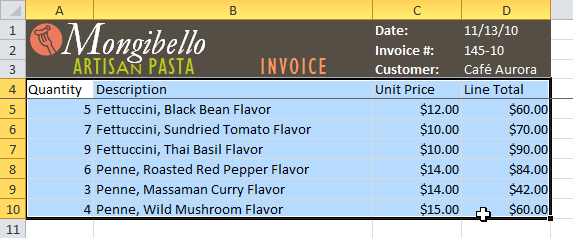
  1. Select the cells you want to format as a table. In this example, an invoice, we'll format the cells containing the column headers and order details.
    Selecting cells to format as a table
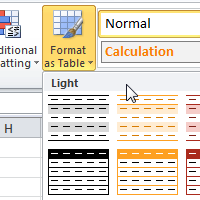
  2. Click the Format as Table command in the Styles group on the Home tab.
    Format as Table command
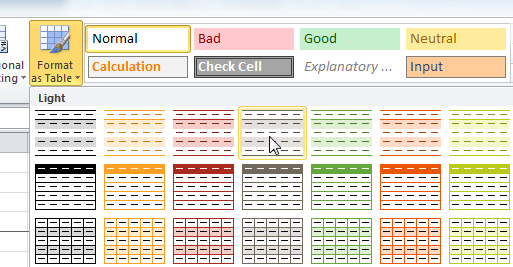
  3. A list of predefined table styles will appear. Click a table style to select it.
    Selecting a table style
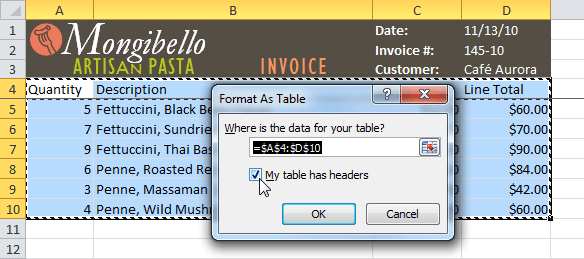
  4. A dialog box will appear, confirming the range of cells you have selected for your table. The cells will appear selected in the spreadsheet, and the range will appear in the dialog box.
  5. If necessary, change the range by selecting a new range of cells directly on your spreadsheet.
  6. If your table has headers, check the box next to My table has headers.
    Creating a table
  7. Click OK. The data will be formatted as a table in the style you chose.
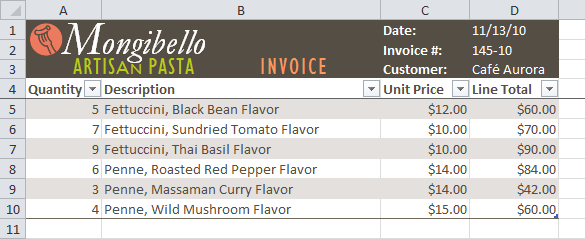
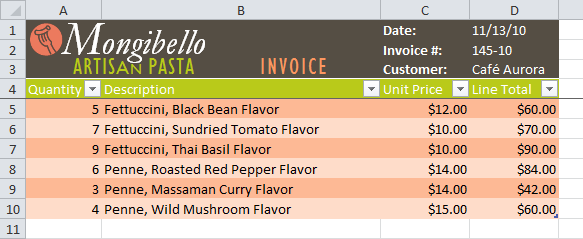
    Data formatted as a table

Tables include filtering by default.

To convert a table back into normal cells, click the Convert to Range command in the Tools group. The filters and Design tab will then disappear, but the cells will retain their data and formatting.

Modifying tables

To add rows or columns:

  1. Select any cell in your table. The Design tab will appear on the Ribbon.
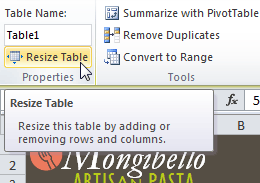
  2. From the Design tab, click the Resize Table command.
    Resize Table command
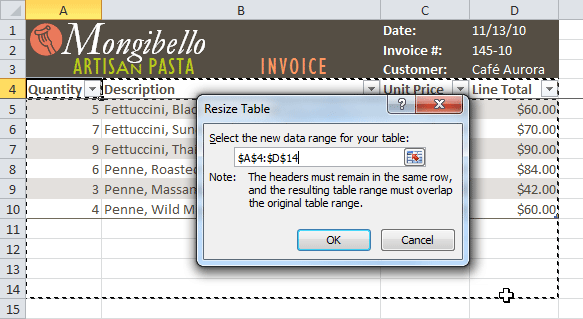
  3. Directly on your spreadsheet, select the new range of cells you want your table to cover. You must select your original table cells as well.
    Selecting a new range of cells
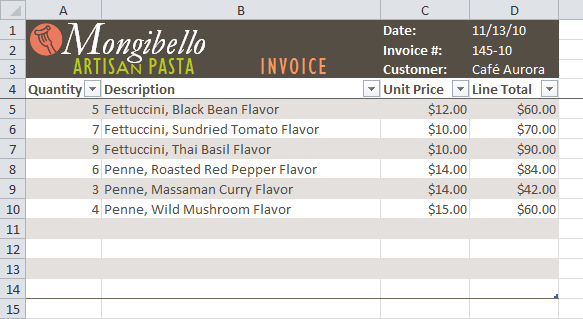
  4. Click OK. The new rows and/or columns will be added to your table.
    After adding new rows

To change the table style:

  1. Select any cell in your table. The Design tab will appear.
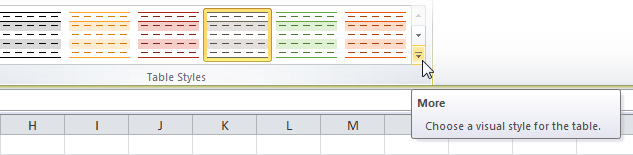
  2. Locate the Table Styles group. Click the More drop-down arrow to see all of the table styles.
    The More drop-down arrow
  3. Hover the mouse over the various styles to see a live preview.
  4. Select the desired style. The table style will appear in your worksheet.
    After changing the table style

To change table style options:

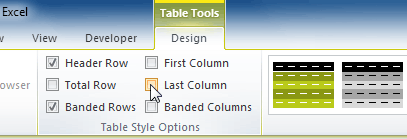
When using an Excel table, you can turn various options on or off to change its appearance. There are six options: Header Row, Total Row, Banded Rows, First Column, Last Column, and Banded Columns.

  1. Select any cell in your table. The Design tab will appear.
  2. From the Design tab, check or uncheck the desired options in the Table Style Options group.
    Table style options

Depending on the table style you're using, certain table style options may have a different effect. You may need to experiment to get the exact look you want.

Challenge!

  1. Open an existing Excel 2010 workbook. If you want, you can use this example.
  2. Format a range of cells as a table. If you are using the example, format the column headers (Quantity, Description, etc.) and the order details.
  3. Add a row or a column.
  4. Change the table style options. If you are using the example, add a total row.
  5. Change the table style several times. Take note of how the table options may appear different depending on the style you use.

Monday, July 18, 2022

Excel 2010 - Filtering Data

Lesson 13

Introduction

Filters can be used to narrow down the data in your worksheet and hide parts of it from view. While it may sound a little like grouping, filtering is different because it allows you to qualify and display only the data that interests you. For example, you could filter a list of survey participants to view only those who are between the ages of 25 and 34. You could also filter an inventory of paint colors to view anything that contains the word blue, such as bluebell or robin's egg blue.


To filter data:

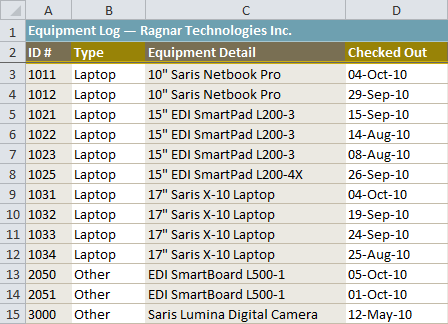
In this example, we'll filter the contents of an equipment log at a technology company. We'll display only the laptops and projectors that are available for checkout.

  1. Begin with a worksheet that identifies each column using a header row.
    Worksheet with header row
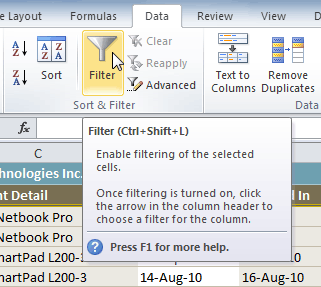
  2. Select the Data tab, then locate the Sort & Filter group.
  3. Click the Filter command.
    Clicking the filter command
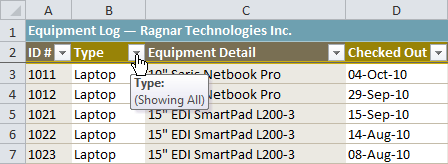
  4. Drop-down arrows will appear in the header of each column.
  5. Click the drop-down arrow for the column you want to filter. In this example, we'll filter the Type column to view only certain types of equipment.
    Filtering a column
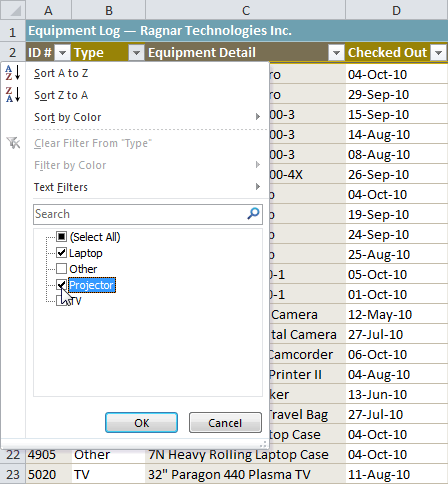
  6. The Filter menu appears.
  7. Uncheck the boxes next to the data you don't want to view, or uncheck the box next to Select All to quickly uncheck all.
  8. Check the boxes next to the data you do want to view. In this example, we'll check Laptop and Projector to view only these types of equipment.
    Selecting filter data
  9. Click OK. All other data will be filtered, or temporarily hidden. Only laptops and projectors will be visible.
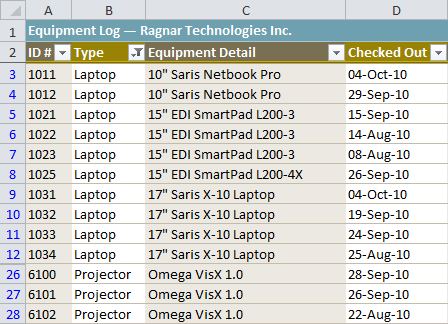
    Filtered worksheet

Filtering options can also be found on the Home tab, condensed into the Sort & Filter command.

To add another filter:


  1. Click the drop-down arrow where you want to add a filter. In this example, we'll add a filter to the Checked Out column to view information by date.
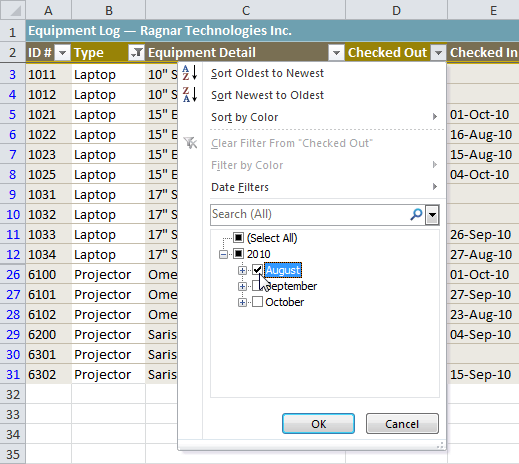
  2. Uncheck the boxes next to the data you don't want to view. Check the boxes next to the data you do want to view. In this example, we'll check the box next to August.
    Selecting filter data
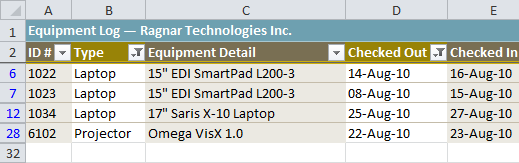
  3. Click OK. In addition to the original filter, the new filter will be applied. The worksheet will be narrowed down even further.
    Worksheet with two filters

To clear a filter:

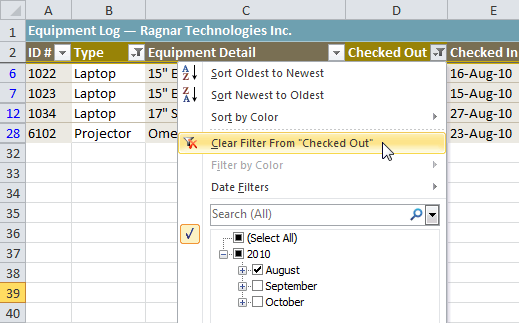
  1. Click the drop-down arrow in the column from which you want to clear the filter.
  2. Choose Clear Filter From.
    Clearing a filter
  3. The filter will be cleared from the column. The data that was previously hidden will be on display once again.

To instantly clear all filters from your worksheet, click the Filter command on the Data tab.

Advanced filtering

To filter using search:


  1. From the Data tab, click the Filter command.
  2. Click the drop-down arrow in the column you want to filter. In this example, we'll filter the Equipment Detail column to view only a specific brand.
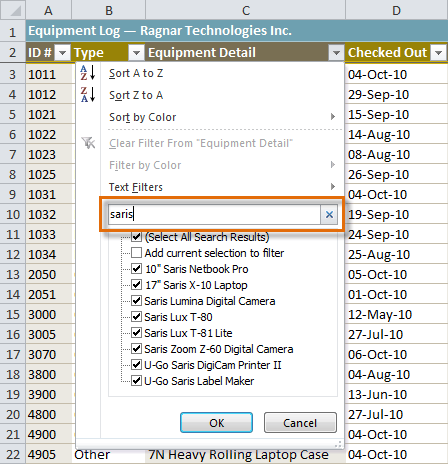
  3. Enter the data you want to view in the Search box. We'll enter the word Saris to find all Saris brand equipment. The search results will appear automatically.
    Entering a search
  4. Check the boxes next to the data you want to display. We'll display all of the data that includes the brand name Saris.
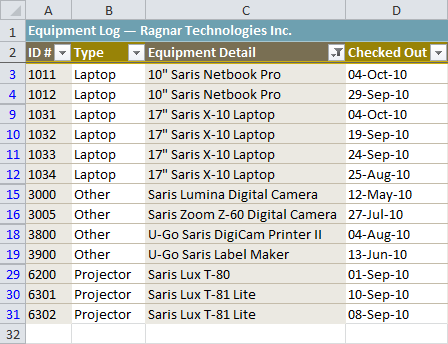
  5. Click OK. The worksheet will be filtered according to your search term.
    Worksheet filtered using Search

Using advanced text filters


  1. From the Data tab, click the Filter command.
  2. Click the drop-down arrow in the column of text you want to filter. In this example, we'll filter the Equipment Detail column to view only certain types of equipment.
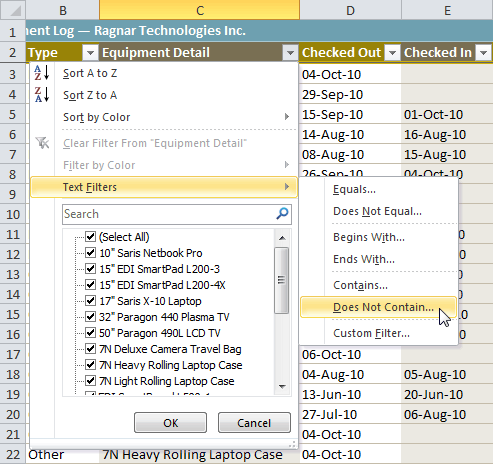
  3. Choose Text Filters to open the advanced filtering menu.
  4. Choose a filter. In this example, we will choose Does Not Contain to view data that does not contain the text we specify.
    Selecting a text filter
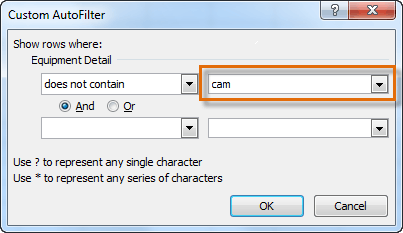
  5. The Custom AutoFilter dialog box appears.
  6. Enter your text to the right of your filter. In this example, we'll enter cam to view data that does not contain these letters. That will exclude any equipment related to cameras, such as digital cameras, camcorders, camera bags, and the digicam printer.
    Entering filter text
  7. Click OK. The data will be filtered according to the filter you chose and the text you specified.

Using advanced date filters


  1. From the Data tab, click the Filter command.
  2. Click the drop-down arrow in the column of dates you want to filter. In this example, we'll filter the Checked Out column to view only a certain range of dates.
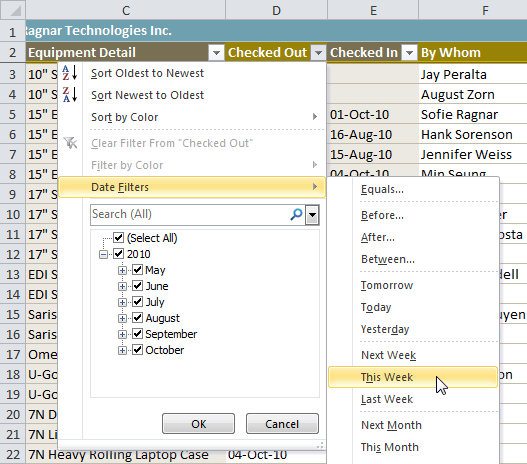
  3. Choose Date Filters to open the advanced filtering menu.
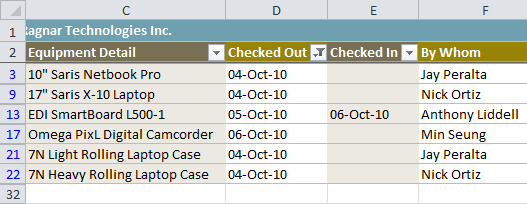
  4. Click a filter. We'll choose This Week to view equipment that has been checked out this week.
    Selecting a date filter
  5. The worksheet will be filtered according to the date filter you chose.
    Worksheet filtered by date


Using advanced number filters


  1. From the Data tab, click the Filter command.
  2. Click the drop-down arrow in the column of numbers you want to filter. In this example, we'll filter the ID # column to view only a certain range of ID #s.
  3. Choose Number Filters to open the advanced filtering menu.
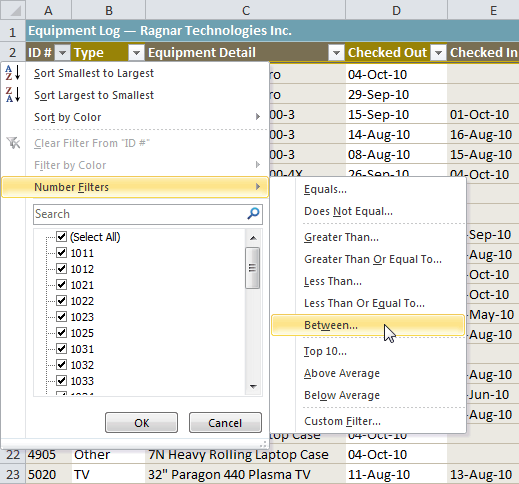
  4. Choose a filter. In this example, we'll choose Between to view ID #s between the numbers we specify.
    Selecting a number filter
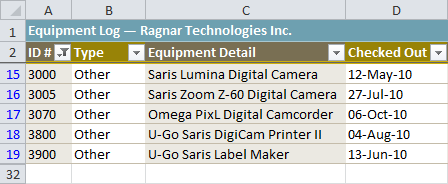
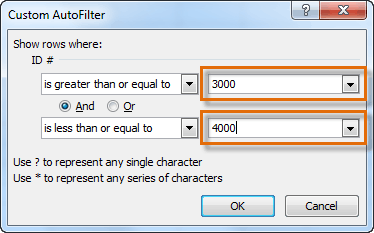
  5. Enter a number to the right of each filter. In this example, we'll view ID #s greater than or equal to 3000 but less than or equal to 4000. This will display ID #s in the 3000-4000 range.
    Entering filter numbers
  6. Click OK. The data will be filtered according to the filter you chose and the numbers you specified.
    Worksheet filtered by number

Challenge!

  1. Open an existing Excel 2010 workbook. If you want, you can use this example.
  2. Filter a column of data. If you are using the example, filter the Type column so it displays only laptops and other equipment.
  3. Add another filter by searching for the data you want. If you are using the example, search for EDI brand equipment in the Item Description column.
  4. Clear both filters.
  5. Use an advanced text filter to view data that does not contain a certain word or phrase. If you are using the example, display data that does not contain the word cam. This should exclude any camera-related equipment, such as digital cameras and camcorders.
  6. Use an advanced date filter to view data from a certain time period. If you are using the example, display only the equipment that was checked out in September 2010.
  7. Use an advanced number filter to view numbers less than a certain amount. If you are using the example, display all ID #s less than 3000.